Daily Summaries Save Your Books: Implement QuickBooks POS Integration
Daily Summaries Save Your Books: Implement QuickBooks POS Integration
Use a daily summary sync between your POS and QuickBooks, not transaction-level detail, unless you have a specific reporting reason otherwise. Start with your POS’s native QuickBooks connector if it supports clean daily-summary mapping; if not, choose a reputable third-party connector or work with a partner like Merchantsolutionscorp for a done-for-you setup. Before you touch anything, back up QuickBooks, audit your Chart of Accounts, pick your integration path, and run one test sync before going live.
TL;DR:
- Most small businesses should use a daily summary sync, as it consolidates daily sales into one entry, reducing file size and reconciliation issues.
- Native QuickBooks connectors are usually the simplest and most cost-effective, especially if they support clean daily-summary mapping, often at no extra cost.
- For higher volumes or multiple locations, third-party middleware provides detailed mapping and automation, typically costing $20 to $100+ monthly.
- Manual import is feasible only for very low transaction volumes and is not scalable, with recurring labor costs increasing over time.
- Proper setup involves backing up QuickBooks, cleaning the Chart of Accounts, and running thorough test syncs before going live to avoid errors and data discrepancies.
Table of Contents
- What Are the Three Ways to Connect QuickBooks POS Integration?
- How Do You Choose the Right POS-QuickBooks Integration?
- Step-by-Step: Connecting Your POS to QuickBooks
- How Should You Map Sales, Tips, Gift Cards, and Fees?
- Why Isn’t My POS Syncing With QuickBooks Correctly?
- What Should QuickBooks Desktop POS Users Know About Migrating?
- How Merchantsolutionscorp Supports Your POS-QuickBooks Setup
- Ready to Fix Your POS-QuickBooks Setup?
- A Realistic Look at What This Integration Actually Delivers
- Sources
- FAQ
What Are the Three Ways to Connect QuickBooks POS Integration?
There are exactly three ways to get sales data from your register into your books, and most businesses should rule out one of them immediately.
Native integration connects your POS directly to QuickBooks Online without a middleman. It’s often the simplest and lowest-cost route when your POS supports a clean daily summary sync, meaning it posts one consolidated entry per day rather than every single transaction. If your POS vendor built the connection specifically for QuickBooks, this is usually where you should start.
Third-party middleware sits between your POS and QuickBooks and handles the translation work. Connectors like the ones Webgility documents automate syncing across POS and ecommerce platforms, cutting down manual data entry and speeding up your month-end close. These tools cost more, typically a recurring monthly fee, but they earn that fee back for businesses running multi-location operations, complex inventory, or several sales channels that need to land in one set of books.
Manual export and import means pulling a sales report from your POS and keying it into QuickBooks by hand, or importing a CSV. It works as a stopgap for very low transaction volume or while you’re evaluating a permanent solution, but it doesn’t scale and it invites human error the moment volume picks up.
The choice between daily summary and transaction-level sync matters more than which integration path you pick. Transaction-level sync posts every single sale, tax line, and tender type individually, which sounds thorough but tends to bloat your QuickBooks file and create duplicate entries and reconciliation headaches. Daily summary sync condenses a day of sales into one clean journal entry, which is easier to reconcile and faster to report on. For most small and mid-sized businesses, daily summary is the better default.
Cost and timeline vary by path:
- Native connectors: often free or included with your POS subscription, typically live within a day or two of setup
- Third-party connectors: commonly $20 to $100+ per month depending on volume and features, usually one to two weeks to configure and test properly
- Manual entry: no software cost, but recurring labor cost every single week
How Do You Choose the Right POS-QuickBooks Integration?
Picking the wrong integration path is the single most common reason POS-QuickBooks setups fall apart within the first quarter. Answer these questions honestly before you commit to anything.
- What’s your transaction volume? A boutique doing 30 sales a day can often run on a native connector or even manual entry. A quick-service restaurant doing 300 transactions a day needs automated daily summary sync, full stop.
- Do you operate multiple locations? Multi-location businesses almost always need middleware that can consolidate sales by location while still posting to one QuickBooks file.
- How itemized does your inventory need to be? If you need to track cost of goods sold by SKU inside QuickBooks, you need a connector with granular item mapping, not a basic summary tool.
- Do you use delivery or third-party ordering platforms? Uber Eats, DoorDash, and similar platforms pay out net of fees and commissions, which needs its own income account and reconciliation step.
- Is your business tip-heavy? Restaurants and salons need mapping that separates tips from sales revenue for payroll reporting.
- What does your bookkeeper or accountant actually want to see? Ask before you build. Some accountants prefer transaction detail for audit trails; most prefer clean daily summaries.
Before signing with any connector or integration partner, ask three direct questions: Does it support daily summary posting? Can you control the account mapping yourself, or does support have to do it for you? Can you run a test sync in a sandbox before going live?
Watch for red flags. If a vendor can’t demonstrate a test sync, offers no visible error log, or locks you into rigid mapping you can’t adjust, walk away. A connector with poor error logging turns a five-minute fix into a half-day support call.
Pro Tip: If your POS’s native connector handles daily summary sync and lets you map at least sales, tax, tips, and refunds separately, stop shopping. The best integration is usually the one you’re not paying extra for.
Step-by-Step: Connecting Your POS to QuickBooks
Rushing this process is how businesses end up with six months of tangled books. Work through it in order.
Pre-flight checks
- Back up your QuickBooks company file. Every setup guide skips this step; don’t.
- Clean up your Chart of Accounts before you connect anything. Remove duplicate accounts and rename anything ambiguous, since a messy chart makes mapping errors far more likely.
- List every payment type your POS accepts, including cash, credit, debit, gift cards, and any split-tender scenarios.
- Document your tax rates and confirm they match what’s configured in QuickBooks.
- Note how gift cards and loyalty rewards flow through your POS, since these get mapped as liabilities, not revenue.
Connecting and mapping
- Authenticate both accounts, granting the integration access to your QuickBooks company file and your POS reporting data.
- Select daily summary as your sync mode unless you have a documented reason for transaction-level detail.
- Map each category individually: sales revenue, sales tax payable, tips, gift-card liability, and processor fees. Don’t accept default mapping without checking it against your actual Chart of Accounts.
Testing before go-live
- Run one small test transaction through your POS.
- Verify it posted correctly in QuickBooks, checking the account, amount, and date.
- Reconcile that single entry against your POS’s own report for the same transaction. If the numbers match, you’re ready.
Going live and monitoring
Once your test sync checks out, turn on automatic daily sync. Spot-check the entries every single day for the first week. This is non-negotiable. Most sync errors surface in the first few days, when mapping gaps and edge cases show up in real sales activity. Set up a weekly deposit-matching routine, comparing what hit your bank account against what QuickBooks recorded. Review the clearing account and tax mapping monthly to catch slow drift before it becomes a real problem.
How Should You Map Sales, Tips, Gift Cards, and Fees?
Clean mapping is what separates a POS integration that saves you hours from one that creates a mess your bookkeeper has to untangle every quarter.
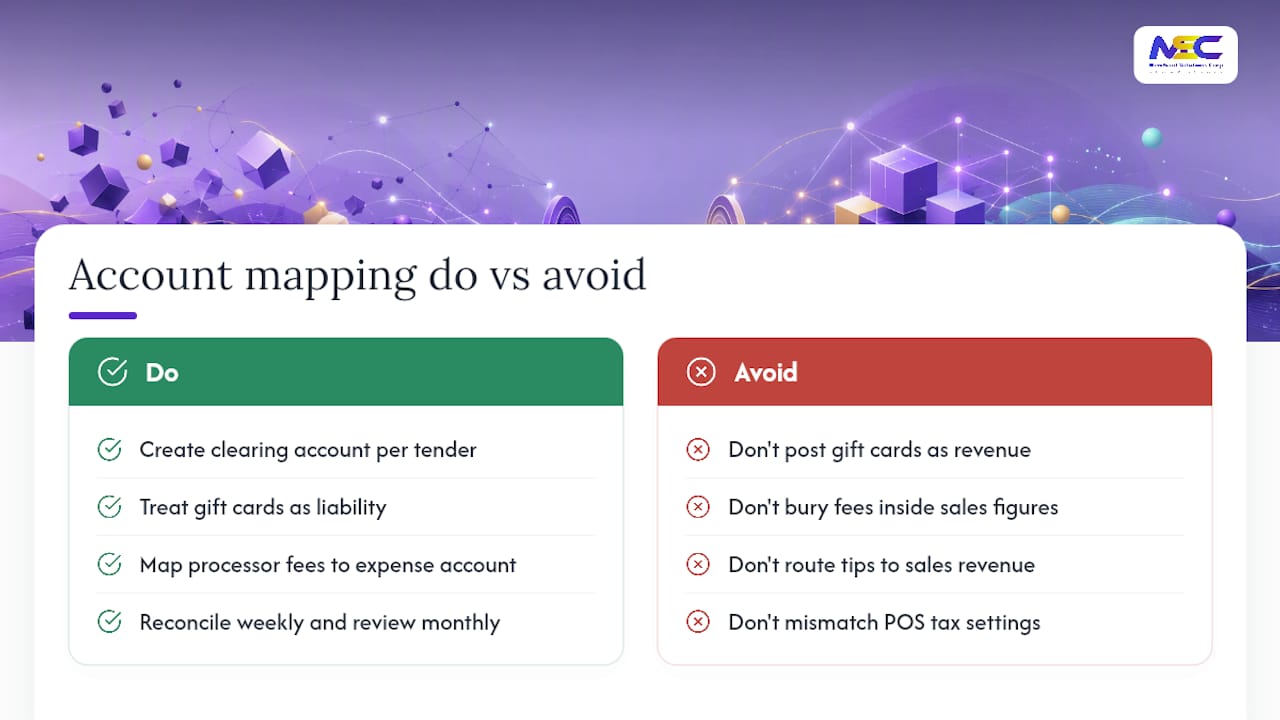
Clearing accounts are the backbone of a reliable setup. Create one clearing account per major tender type or per payment processor. When your POS batches out, the full sale amount lands in the clearing account; when the net deposit hits your bank a day or two later, you match it against that clearing account and post the difference as a processor fee. This two-step process is what lets you reconcile net deposits against gross sales without guessing where the gap went.
Gift cards should never post as revenue at the point of sale. Treat them as a liability until redeemed, since the business owes the customer merchandise or service, not cash. When the card gets redeemed, that’s when the sale actually posts as revenue. Skipping this step is one of the most common mapping mistakes, and it quietly inflates revenue while hiding a real liability on your books, an issue several integration guides flag repeatedly.
Processor fees belong in a dedicated expense account, never buried inside your sales figures. Map them so they show up as a line item against the clearing account when you match deposits, giving you a clear monthly view of what payment processing actually costs you.
Tips need to route to a payroll or tip liability account, separate from sales revenue, so your payroll reporting stays accurate and your revenue numbers aren’t artificially inflated by money that isn’t yours.
Sales tax should map to a dedicated tax payable account that mirrors your POS’s tax settings exactly. A mismatch here is one of the most common causes of quarterly filing headaches.
A disciplined weekly reconciliation habit, matching processor batch IDs against bank deposits and reviewing tax and gift-card liability accounts monthly, catches drift before it compounds. Businesses that build this into a routine from day one, following the same daily close and weekly matching structure most bookkeeping guides recommend, rarely end up with a surprise cleanup project at year-end.
Why Isn’t My POS Syncing With QuickBooks Correctly?
Most sync failures fall into a handful of predictable categories, and nearly all of them are fixable without a lengthy support call.
- Authentication or API errors: Your connector loses its authorized connection, often after a password change or a routine QuickBooks update. Re-authenticate the connection and confirm the connector itself is running its latest version.
- Duplicate entries: This usually happens when your bank feed auto-categorizes POS deposits at the same time your integration is also posting them. Turn off auto-categorization for POS-related bank feed transactions and let the integration handle deposit matching exclusively.
- Delivery platform payout mismatches: Uber Eats, DoorDash, and similar platforms pay out net of commission, not gross sales. Set these up as separate income accounts and reconcile the payouts weekly rather than expecting them to match your POS sales report line for line.
- Item or tax mapping mismatches: A single SKU with the wrong tax code can throw off an entire batch. Use your connector’s sync error log to isolate the offending item, correct the mapping, and retry just that failed batch rather than re-running the whole sync.
Escalate to your integration provider when mismatches persist across multiple batches, or when your clearing account balance drifts and you can’t trace it to a specific transaction. That pattern usually points to a mapping rule that needs to be rebuilt, not a one-off fix.
Pro Tip: Keep a simple log of every sync error and its fix. Most businesses hit the same two or three error types repeatedly, and a five-minute reference sheet saves you from relearning the fix every time.
What Should QuickBooks Desktop POS Users Know About Migrating?
QuickBooks Desktop Point of Sale is no longer supported, and most current integrations are built around QuickBooks Online instead, which makes migrating to a cloud POS the practical move for holdout users, as Fit Small Business notes. Waiting doesn’t buy you anything except a growing gap between your systems.
Plan the migration in stages rather than as a weekend project:
- Export your historical sales, customer records, and inventory data from Desktop POS before you decommission anything.
- Preserve outstanding gift-card liabilities carefully. This balance needs to carry over accurately or you’ll understate a real obligation.
- Decide whether historical transaction detail lives permanently in QuickBooks or stays archived in your old POS export, since Shopify’s own migration documentation walks through exactly this decision point.
- Run your new cloud POS in parallel with the old system for a short window, reconciling both against each other before fully retiring Desktop POS.
For businesses with years of historical data or complex inventory, bringing in outside help for the cleanup, guided by the kind of structured rollout planning used in other software transitions, often costs less than the hours an owner burns fixing mapping errors after the fact.
How Merchantsolutionscorp Supports Your POS-QuickBooks Setup
Some providers help businesses choose the right POS, configure the connector, and map the Chart of Accounts correctly the first time. This may include hardware programs with low or no upfront costs, onboarding support, staff training, and industry-specific setups for restaurants, retail, and high-risk businesses that need faster deployment.
Before a consultation, have your QuickBooks version, current or planned POS type, average monthly transaction volume, and hardware needs ready. That short list lets a specialist recommend the right integration path in one conversation instead of several.
Ready to Fix Your POS-QuickBooks Setup?
Some firms set up the POS-to-QuickBooks connection end to end: connector configuration, Chart of Accounts mapping, hardware provisioning, and staff onboarding, reducing the burden of troubleshooting sync errors alone at month-end. Compare that to going it alone with a generic connector and a support ticket queue, or paying an outside bookkeeper to untangle mapping mistakes every quarter.
To get started, share your current POS setup, QuickBooks version, and monthly transaction volume. From there, Merchantsolutionscorp can recommend the right POS system, whether that’s a full POS system built for your industry or a retail-specific setup, and configure the QuickBooks mapping before your first live sync.
Request a consultation on payment processing and POS integration to get a quote on hardware and setup timelines for your business.
A Realistic Look at What This Integration Actually Delivers
A clean POS-to-QuickBooks setup rarely feels transformative in the first week. What it delivers, once mapping is correct and the sync has run for a full month, is a measurable drop in the hours spent reconciling deposits and chasing down where a discrepancy came from.
The monitoring cadence matters more than the setup itself. Daily spot-checks in week one catch mapping gaps while they’re still small. Weekly deposit matching keeps clearing accounts honest. A monthly review of tax and gift-card liability accounts is what prevents the slow, invisible drift that turns into a painful year-end cleanup. Merchantsolutionscorp builds that cadence into onboarding rather than treating go-live as the finish line, because the integration that fails quietly in month four is far more expensive than the one that gets watched closely in week one.
— Jonathan
Sources
- 7 Best POS Systems That Integrate With QuickBooks in 2026 — Fit Small Business
- QuickBooks Desktop POS migration guidance — Shopify Help Center
- POS QuickBooks sync guide — DeliverGuard
- QuickBooks POS integration explained — Webgility
FAQ
Is There a POS System That Integrates With QuickBooks?
Yes. Many modern POS platforms offer native QuickBooks Online connectors, and some providers can help businesses match to a POS with a reliable daily summary sync built in.
Is QuickBooks POS Being Discontinued?
QuickBooks Desktop Point of Sale is no longer supported by Intuit, and most current integration paths are built around QuickBooks Online, which is why migrating to a cloud POS is the standard recommendation now.
Can You Do POS Directly Inside QuickBooks?
QuickBooks itself isn’t built as a full point-of-sale system for ringing up transactions. It’s designed to receive sales data, whether daily summaries or transaction detail, from a dedicated POS system through an integration.
Why Do Some Accountants Dislike QuickBooks?
Accountants sometimes push back on QuickBooks when transaction-level POS syncs flood the file with duplicate entries or unclear mapping, which is exactly why daily summary sync and clearing-account workflows are recommended over raw transaction feeds.
How Often Should POS Sales Sync to QuickBooks?
Daily summary sync is the standard recommendation for most small and mid-sized businesses, since it keeps the QuickBooks file smaller and reconciliation more predictable than syncing every individual transaction.