Enable Tap to Pay on iPhone in an Afternoon for Merchants
Enable Tap to Pay on iPhone in an Afternoon for Merchants
Yes, you can accept contactless payments with only a supported iPhone. You need a compatible payment app enabled for Tap to Pay on iPhone, an active merchant account, and up-to-date iOS. No extra terminal, no card reader dongle. Customers tap their card, phone, or watch to your iPhone, and the sale processes through your payment service provider in seconds.
TL;DR:
- Merchants need a supported iPhone (XS or newer), an active merchant account, and a compatible payment app with Tap to Pay enabled to accept contactless payments.
- The process is secure, encrypting payment data with Apple’s Secure Element, and requires regular iOS updates and passcodes on the device.
- Run a test transaction daily before opening to verify setup, as most failures stem from configuration or connectivity issues rather than security.
- Limits vary by card network and wallet type, with some tokenized wallets allowing higher acceptances, but always confirm your PSP’s specific thresholds.
- Merchant Solutions Corp can streamline setup and ensure the feature works correctly on the first test, reducing operational errors during busy times.
Table of Contents
- How Does Tap to Pay Work on an iPhone?
- What Do You Need to Get Started?
- How Do You Enable Tap to Pay in Your Payment App?
- Is Tap to Pay on iPhone Secure?
- What Are the Transaction Limits and Fees?
- Why Won’t My Tap to Pay Work?
- How Can Merchant Solutions Corp Help You Enable Tap to Pay?
- How Do Customers Actually Use Tap to Pay at the Register?
- Tap to Pay on iPhone vs. Tap to Pay on Android: What’s Different?
- What the Setup Advice Usually Gets Backwards
- Get Tap to Pay Set Up Fast With Merchant Solutions Corp
- Sources
- FAQ
How Does Tap to Pay Work on an iPhone?
The mechanics are simpler than most merchants expect. A customer holds their contactless card, Apple Pay device, Apple Watch, or another digital wallet near the top of your iPhone. Your payment app requests a secure read, and the iPhone’s NFC antenna pulls an encrypted payload from the card or wallet.
That data never sits in plain form on your phone. The Secure Element, a dedicated chip separate from the iPhone’s main processor, hosts the payment applets that handle the read. Only your PSP holds the keys to decrypt what comes off that chip. Apple’s operating system never sees the raw card data.
From the customer’s side, the experience feels almost identical to tapping a countertop terminal:
- The screen shows the amount and your business name or logo.
- A checkmark and confirmation tone signal a completed transaction.
- For cards that require a PIN, an accessibility-friendly entry screen appears, with audible prompts and tap-based input available for customers who need them.
The whole exchange usually takes two to three seconds once the card or phone makes contact.
What Do You Need to Get Started?
Before you try to accept a payment, run through a short eligibility check. Getting this wrong is the most common reason merchants think Tap to Pay “isn’t working” when really it was never turned on.
- Device: An iPhone XS or newer, running a supported iOS version. Check Settings > General > Software Update if you’re unsure.
- Payment app: A PSP app with Tap to Pay explicitly enabled. Not every payment app supports it yet, so confirm directly with your provider before promising customers a tap option.
- Account setup: An active merchant account or merchant ID tied to that app, plus a passcode set on the iPhone itself. Apple requires a passcode before Tap to Pay will activate.
- Connectivity: A working internet connection for real time authorization. Some apps support Store & Forward mode for brief offline stretches, which we cover below.
Once those four boxes are checked, you’re ready to flip the switch inside your app.
How Do You Enable Tap to Pay in Your Payment App?
Enabling Tap to Pay usually takes less time than setting up a new employee badge. The exact menu path differs by app, but the sequence is consistent across most PSPs.
- Sign into your payment app with your merchant credentials.
- Open Settings or Account, then look for a “Tap to Pay on iPhone” or “Contactless Payments” toggle.
- Confirm your merchant ID is correctly linked and switch the feature on.
- Set or confirm your iPhone passcode if you haven’t already, since the app will block activation without one.
- Run a test transaction, ideally for $1, to confirm the toggle actually took effect before you open for business.
Accepting a live payment follows the same rhythm every time: open the app, key in the sale amount, and hold your iPhone out so the customer can tap their card or wallet near the top edge, just below the camera. Wait for the checkmark and confirmation tone before handing back a receipt.
Train your staff to hold the phone steady rather than waving it toward the customer. A stable, waist-to-chest-height presentation reads faster than a phone in motion. This setup also shines for line-busting at a crowded counter or running a pop-up stand where hauling a full terminal isn’t practical.
Pro Tip: Run your $1 test transaction before your first real customer of the day, not after a slow morning convinces you something’s broken. Catching a misconfigured merchant ID before opening saves you an awkward voided sale in front of a line.
Is Tap to Pay on iPhone Secure?
Security is where most merchants have the most questions, and reasonably so. You’re handling customer payment data on a consumer device, and that deserves a straight answer.
Tap to Pay on iPhone is built around the same Secure Element architecture Apple uses for Apple Pay. Payment data gets encrypted at the point of the tap, and Apple does not store card numbers on its servers. Only your PSP can decrypt the transaction to process it.
The system is designed to meet the expectations of PCI Mobile Payments on COTS (MPoC), the standard covering contactless payment acceptance on commercial off-the-shelf devices like an iPhone, and Apple lists relevant validations where they apply. Apple does process a limited amount of session data, including a merchant identity token and validation info tied to a transaction, and retains some metadata for compliance windows, but never full card numbers.
A short checklist keeps your side of the security equation solid:
- Keep a passcode active on every iPhone used for Tap to Pay.
- Update iOS promptly when Apple releases security patches.
- Confirm your PSP maintains its own PCI compliance and certification.
Merchants who want a deeper look at how this fits into a broader compliance program can review Merchant Solutions Corp’s security and compliance practices for more context.
What Are the Transaction Limits and Fees?
Contactless payment limits aren’t fixed by Apple. They vary by card network, issuing bank, and wallet type, and tokenized wallets like Apple Pay sometimes allow higher limits than a plain contactless card. Check with your PSP for the specific ceiling your account carries.
- Store & Forward: Your iPhone can read and encrypt a card even without an internet connection. The encrypted data waits until connectivity returns, and your PSP may request the decryption keys within a set window tied to that provider’s policy.
- Fees: Processing costs depend entirely on your PSP contract and typically fall within a typical range for card-present transactions, though your actual rate depends on your provider, industry, and volume. Never assume a rate. Always confirm it in writing.
Why Won’t My Tap to Pay Work?
Most failures trace back to one of four things, and checking them in order saves you a support call.
- Confirm the basics first: supported iPhone model, current iOS, an active passcode, and the Tap to Pay toggle switched on inside your payment app.
- Card won’t read: ask the customer to reposition the card flatter against the tap area, try a different edge of the card, or switch to their phone’s mobile wallet instead.
- Network trouble: if your connection drops, Store & Forward may still let you capture the sale offline. If decryption or settlement stalls afterward, contact your PSP’s support line directly rather than retrying the same transaction repeatedly.
Pro Tip: Keep your PSP’s support number saved in your phone’s contacts under a name like “Payment Help,” not buried in an email somewhere. When a card won’t read during a rush, you don’t want to be searching your inbox.
How Can Merchant Solutions Corp Help You Enable Tap to Pay?
Some merchants prefer to configure Tap to Pay themselves in an afternoon. Others want someone on the phone walking through merchant ID setup, app configuration, and staff training before opening day. Merchant Solutions Corp supports both paths.
As a nationwide payment processing and POS provider, Merchant Solutions Corp configures merchant accounts and supported POS apps so Tap to Pay activates correctly the first time, without a guessing game over settings menus. That includes free hardware programs, integrations across major POS systems, and dual pricing options built to offset processing costs.
If you request setup help, the typical process runs through a short consultation, account configuration, a live test transaction, and basic staff training on positioning and troubleshooting, before your team ever faces a live customer tap.
How Do Customers Actually Use Tap to Pay at the Register?
From a shopper’s perspective, the process asks for almost nothing new. Customers who already tap their card at a grocery store or gas pump are using the identical motion here, just against a phone screen instead of a countertop reader.
The sequence looks like this in practice: the merchant enters the sale amount in their payment app, then holds the iPhone out with the top edge, near the camera, facing the customer. The customer holds their contactless card, phone, or smartwatch within about an inch of that spot for a second or two.
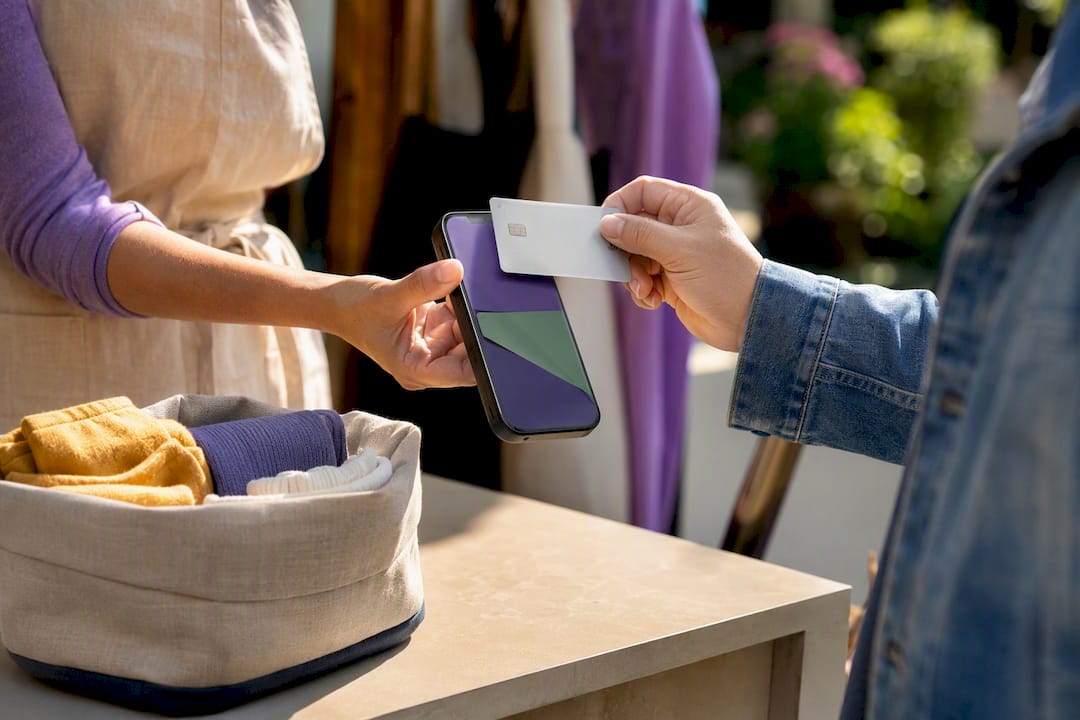
No PIN entry is needed for most everyday purchases under the card network’s contactless threshold. Larger purchases or certain card types may prompt a PIN, which appears on the merchant’s iPhone screen through an accessibility-friendly entry flow so the customer can enter it privately. Once the app confirms the read, a checkmark and a short tone signal the sale went through, and the merchant can offer a digital or printed receipt.
For businesses running pop-ups, food trucks, or live retail events, this same flow supports selling from anywhere with cell signal. Retailers running in-person promotional events, the kind highlighted in live shopping formats, lean on exactly this kind of mobile-first checkout to keep lines moving without a fixed register.
Tap to Pay on iPhone vs. Tap to Pay on Android: What’s Different?
Both platforms solve the same problem, contactless acceptance without a dedicated terminal, but the implementations diverge in a few practical ways worth knowing before you pick a device strategy for your business.
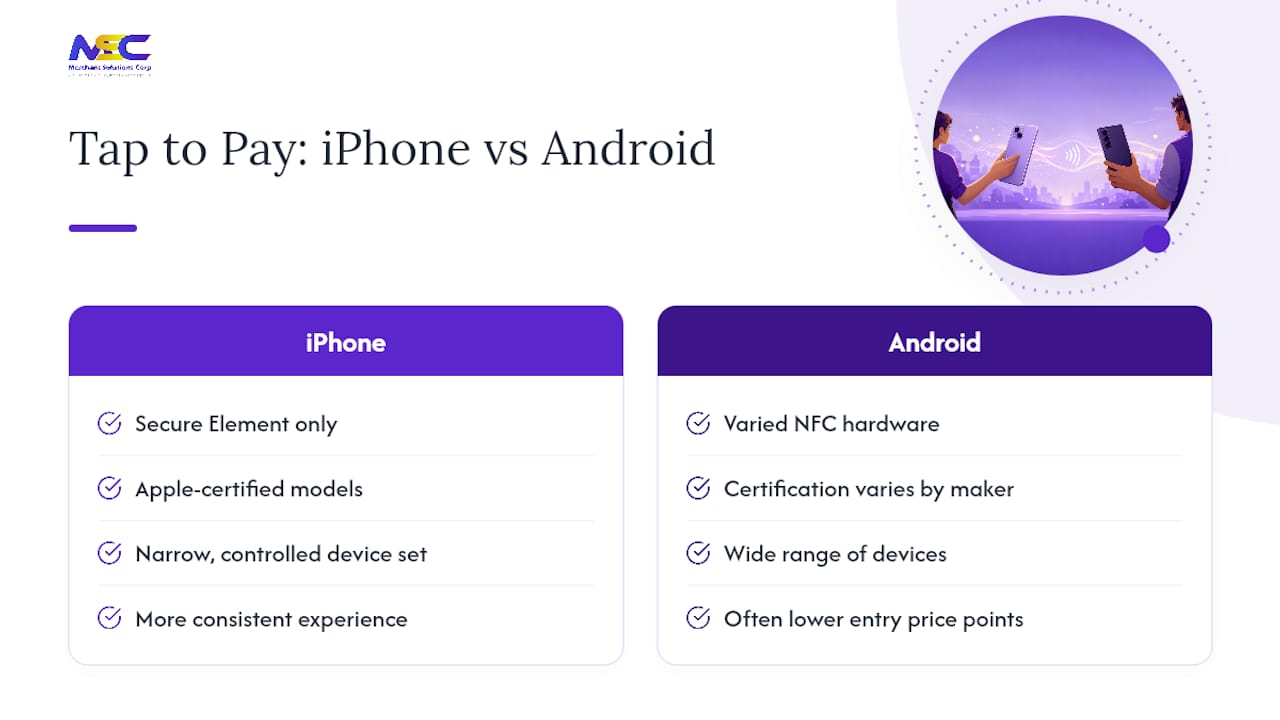
Tap to Pay on iPhone runs exclusively on Apple’s Secure Element architecture and is limited to the specific iPhone models Apple certifies for the feature. Android’s version, often marketed under names like Tap to Pay on Android, spans a much wider range of hardware from different manufacturers, which means certification and NFC hardware quality can vary from one Android device to the next.
That hardware diversity cuts both ways. Android merchants sometimes get more device choice and lower entry price points. iPhone merchants get a more consistent experience across every certified device, since Apple controls the hardware and the Secure Element implementation end to end.
Payment app support looks similar on both platforms in practice: your PSP determines whether Tap to Pay is available, not the operating system alone. A merchant switching between an iPhone and an Android device for testing will typically find the customer-facing tap experience nearly identical, even though the backend certification path differs. For most small business owners, the practical decision comes down to which device they already carry and which PSP app they’ve chosen, rather than any meaningful gap in security or speed between the two systems.
What the Setup Advice Usually Gets Backwards
Most guides treat Tap to Pay like a novelty feature you flip on and forget. That undersells what’s actually useful here: it removes the single biggest friction point in getting a new business, or a mobile sales operation, accepting cards on day one.
The conventional advice focuses heavily on the security architecture, and rightfully so, but spends too little time on the operational side. The real failure point for most merchants isn’t encryption. It’s skipping the test transaction, not confirming their specific PSP app supports Tap to Pay before promising it to customers, or forgetting to set a passcode and getting locked out mid-shift.
Prioritize verification over features. Confirm your PSP supports it, confirm your device is eligible, and run that test dollar transaction before your first real sale of the day. The security groundwork Apple and PCI standards have built is solid. Your setup discipline is the part still in your hands, and it’s the part actually worth double-checking.
— Jonathan
Get Tap to Pay Set Up Fast With Merchant Solutions Corp
You can absolutely enable Tap to Pay yourself following the steps above. But if you’d rather skip the trial and error, Merchant Solutions Corp configures your merchant account and POS app so Tap to Pay works correctly the first time you test it, not the third.
That means no guessing which settings menu hides the toggle, no wondering if your PSP app actually supports it, and no surprise decline at the register during your first week open. Merchant Solutions Corp handles the account setup, app configuration, and a live test transaction before you ever face a real customer tap.
Visit the payment processing and POS overview to see what’s included, or reach out to get your merchant account configured for Tap to Pay this week.
Sources
For primary documentation, see Apple’s developer setup guide, Apple’s security overview, and Chase’s business guidance on Tap to Pay benefits.
- How to use Tap to Pay on iPhone for your business - Apple Developer
- Tap to Pay on iPhone security - Apple Support
FAQ
How Do I Enable Tap to Pay on My iPhone?
Open your PSP’s payment app, go to Settings or Account, and turn on the Tap to Pay option, then confirm your merchant ID and passcode are set correctly.
What Is the Difference Between Apple Pay and Tap to Pay?
Apple Pay lets a customer pay from their own iPhone or Apple Watch using a stored card. Tap to Pay on iPhone turns the merchant’s iPhone into the payment terminal that accepts Apple Pay, contactless cards, and other wallets.
How Do I Turn On Tap to Pay on My iPhone?
Tap to Pay activates inside your specific payment app rather than in the iPhone’s general Settings menu, so look for the toggle within your PSP’s app under account or payment settings.
How Do I Activate NFC on My iPhone?
NFC is built into every supported iPhone and stays active by default for features like Tap to Pay and Apple Pay, so there’s typically no separate switch to turn on; if a payment isn’t reading, confirm your Tap to Pay setting is enabled inside your payment app instead.